

Key Takeaways
Our Verdict
Desktop software and mobile apps are not interchangeable - they're built around different hardware, usage contexts, and user expectations. Desktop versions generally win for complex, sustained work; mobile apps win for quick access and on-the-go tasks. The most effective approach is often using both versions intentionally.
| Best for | Recommended |
|---|---|
| Detailed, sustained work requiring a full feature set | Desktop Software |
| Quick tasks, notifications, and portability | Mobile App |
| Users who work across multiple devices | Both versions with cloud sync |
Why the Same Tool Feels So Different on Each Device
If you've ever tried to do serious work in a mobile app and felt strangely limited - or opened a desktop program expecting it to be just as simple as your phone version and found yourself overwhelmed - that disconnect is intentional. Desktop software and mobile apps are engineered for fundamentally different environments.
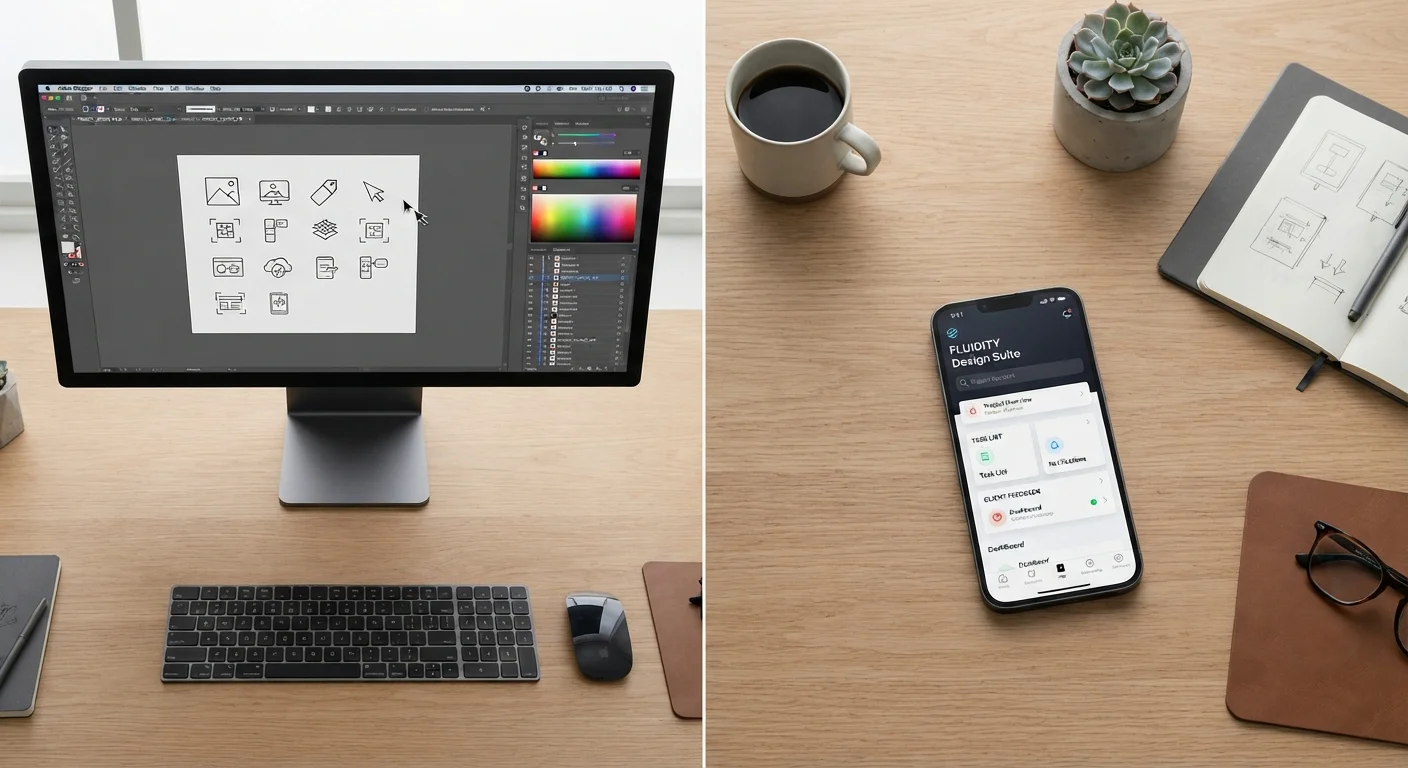
Desktop programs are built around consistent power, large screens, physical keyboards, and mice or trackpads. They can run complex processes in the background, handle large files, and display multiple panels simultaneously. Mobile apps, by contrast, are designed for a 6-inch touchscreen, limited battery life, intermittent connectivity, and a user who may only have 30 seconds to spare. These constraints shape every design decision a developer makes.
That's not a flaw in either version - it's the result of each being optimized for where and how it will actually be used. The friction you feel comes from expecting one to perform like the other.
Key Differences Between Desktop and Mobile Versions
Understanding the structural differences helps set realistic expectations before you sit down to work.
| Desktop Software | Mobile App | |
|---|---|---|
| Feature depth | Full feature set | Streamlined subset |
| Processing power | High - sustained tasks supported | Limited - battery and thermal constraints |
| Screen and layout | Large display, multi-panel layouts | Small touchscreen, single-panel focus |
| Input method | Keyboard and mouse precision | Touch and swipe gestures |
| Hardware sensors | Limited (webcam, mic) | GPS, camera, accelerometer, biometrics |
| Portability | Requires desk or lap | Always available on your person |
| File system access | Full access | Sandboxed, restricted |
| Updates and maintenance | Manual or semi-automatic | Automatic via app store |
One of the most commonly noticed gaps involves feature parity - the degree to which the mobile and desktop versions of the same product offer the same capabilities. For many tools, the mobile app is essentially a streamlined reader or quick-entry companion, while the desktop version is where you do the heavy lifting. Video editors, spreadsheet tools, and photo managers are frequent examples of this pattern.
Native apps vs. browser-based tools is another dimension worth understanding - web apps sometimes fill the gap between a stripped-down mobile app and a full desktop install.
What Mobile Apps Do Better
Mobile apps aren't simply lesser versions of desktop software. In several areas, they are genuinely superior.
- Instant access: A tap gets you into an app in seconds. There's no boot time, no window management, no navigating a file system.
- Push notifications: Mobile apps can alert you to time-sensitive information - a calendar reminder, a message, a price drop - without requiring you to actively check anything.
- Hardware integration: Smartphones pack GPS, cameras, microphones, accelerometers, and biometric sensors that desktop machines typically lack. Apps built around these features - navigation, document scanning, health tracking - are inherently mobile-first.
- Portability: The obvious but real advantage is that your phone is almost always with you. Any tool that benefits from being available everywhere is a candidate for mobile-first use.
For a deeper look at what stock mobile software can do, see your phone's built-in apps.
Use Each Version for What It Does Best
Rather than picking one platform and sticking to it, consider assigning tasks by device. Use your phone for capturing information quickly - notes, photos, quick entries - and your desktop for organizing, editing, and producing finished work. Many cloud-connected tools are specifically designed with this split workflow in mind.
What Desktop Software Does Better
Desktop environments still hold clear advantages for sustained, complex, or precision-driven work.
- Processing power: Desktop machines - and increasingly laptops - can run computationally intensive tasks that would drain a phone battery or crash an app within minutes.
- Screen real estate: Multi-panel layouts, side-by-side documents, and detailed toolbars are practical on a large display and nearly impossible on a 6-inch screen.
- File system access: Desktop software can read from and write to your entire file system freely. Mobile apps operate in sandboxed environments that limit what files they can access and where they can save output.
- Keyboard-driven efficiency: For tasks involving significant text input or keyboard shortcuts, a physical keyboard has no equal.
Keeping your desktop software up to date is also critical - software updates matter more than most people realize, particularly on platforms that don't auto-update by default.
Making the Right Choice for Your Workflow
The most practical question isn't which platform is better - it's which version serves a specific task. Consider the following:
- Define the task first. Drafting a long report, editing a spreadsheet with dozens of columns, or managing a complex project almost always calls for desktop. Checking a notification, logging a quick entry, or scanning a receipt calls for mobile.
- Check for feature gaps. Before starting important work on a mobile app, confirm that the features you need are actually available. Many apps clearly state which functions are desktop-only.
- Use cloud sync to bridge both. Many tools store your data in the cloud, letting you start on one device and continue on another. Syncing across devices doesn't have to be complicated - but understanding how a specific tool handles sync can prevent lost work.
If you're evaluating a tool for financial tasks specifically, it's also worth reading about spreadsheet budgets vs. budgeting apps - a concrete example of how the desktop vs. mobile distinction plays out in everyday personal finance.