

Key Takeaways
Why 'Delete' Isn't What You Think It Is
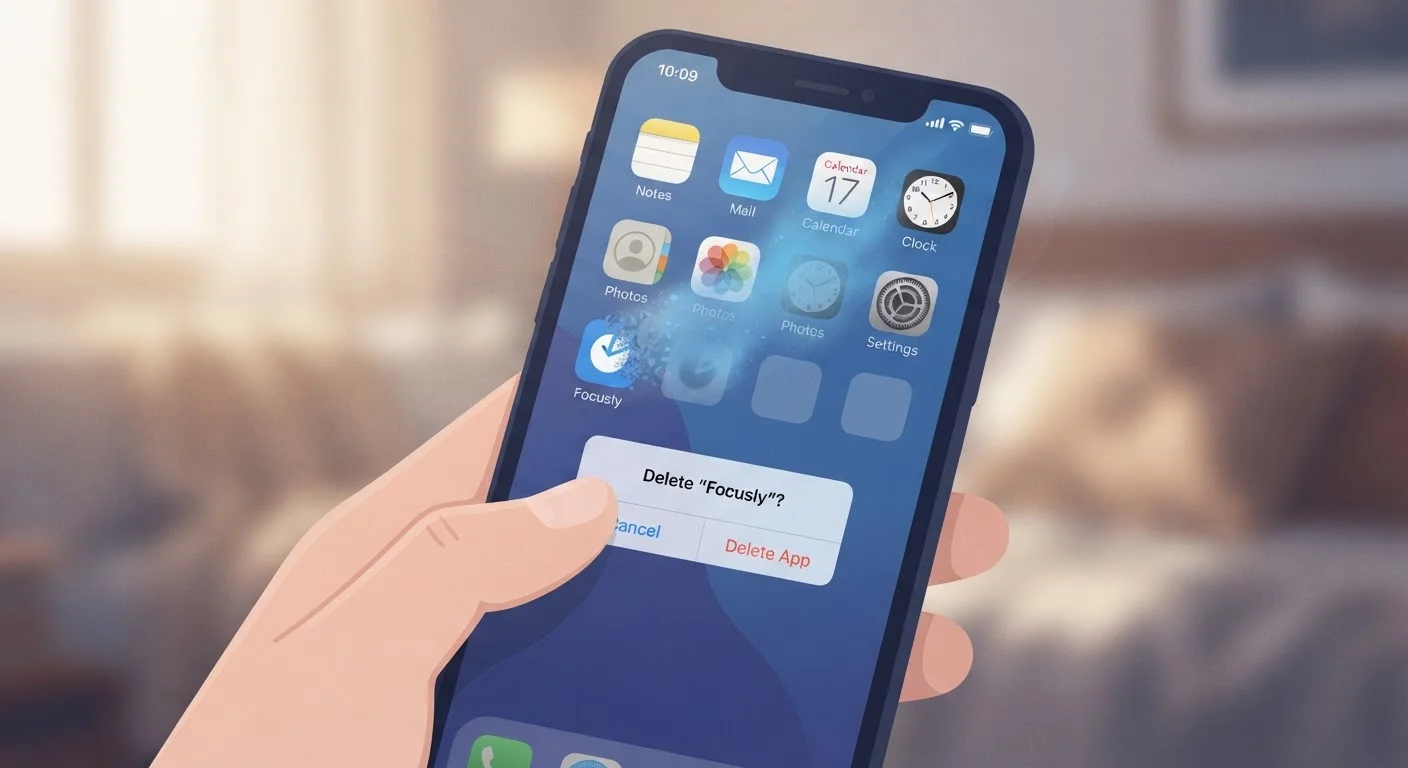
Most people tap "Delete" or "Uninstall" and assume the job is done. In reality, that action typically removes only the executable software from your device - not the account, the stored data, or any active billing arrangement tied to it. Understanding this distinction is foundational to managing your digital footprint.
Modern apps are designed to persist. Your preferences, usage history, photos, and documents are routinely synced to remote servers so you can restore them if you reinstall. That convenience has a flip side: the data doesn't vanish just because the app does. For a broader look at how app stores handle installs, updates, and data, see how app stores actually operate.
Deleting the app without canceling the subscription first.
Why it happens: The connection between an app icon and a billing agreement isn't visually obvious, so users assume removal stops the charges automatically.
Assuming cloud-synced data disappears when the app is removed.
Why it happens: Sync happens in the background, so users often don't realize their files, photos, or notes live on a remote server rather than solely on their device.
Leaving third-party login permissions active after removing an app.
Why it happens: "Sign in with Google" or "Sign in with Apple" creates a persistent credential link that isn't broken by uninstalling the app on your device.
Ignoring leftover files on desktop operating systems.
Why it happens: Unlike mobile platforms, desktop systems like Windows and macOS routinely leave behind preference files, caches, and support folders that the standard uninstall process does not remove.
Not distinguishing between mobile and desktop removal procedures.
Why it happens: Many apps exist on both platforms, leading users to assume the same simple drag-to-trash or hold-and-delete gesture handles everything on every device.
How to Do a Proper Clean Removal
A thorough removal involves several steps beyond tapping "Delete." Work through this checklist before you consider an app truly gone:
- Cancel any subscription first. On iOS, manage subscriptions through Settings > your Apple ID > Subscriptions. On Android, go to the Google Play Store > Profile > Payments & subscriptions. On desktop services, log into the provider's website directly.
- Request account and data deletion. Many services offer a "Delete my account" option buried in settings. Under privacy laws such as the California Consumer Privacy Act (CCPA), U.S. residents can often formally request data erasure. Look for a "Privacy" or "Data" section within the app's settings before uninstalling.
- Revoke third-party permissions. If you signed in with Google or Apple, those connections persist. Audit them at myaccount.google.com under "Third-party apps" or in iOS Settings > Privacy & Security > Tracking.
- Remove leftover local files. On Windows, use Settings > Apps to uninstall, then check for residual folders in AppData. On macOS, an app's support files often remain in ~/Library even after dragging the app to Trash.
Canceling Too Late May Not Stop a Charge
If a billing cycle renews before you cancel, most subscription services will not issue a refund for that period - even if you've already deleted the app. Cancel well before the renewal date, and check your confirmation to verify the effective end date. When in doubt, check the terms of service for that provider's refund policy.
Once those steps are complete, you can feel more confident the removal is actually thorough. If you're working to reduce clutter more broadly, organizing your digital life offers a practical starting framework. And if subscriptions are the main concern, a dedicated subscription audit can surface charges you may have forgotten about entirely.
74%
Users unaware deletion doesn't stop billing
A 2022 consumer survey by NortonLifeLock found that a significant majority of smartphone users did not realize that deleting an app does not automatically cancel an associated subscription.
~30%
Of app storage is residual files on desktop
Research by storage utility developers has consistently found that macOS and Windows desktop apps leave behind roughly 30% of their installed footprint as orphaned files after standard removal.