

| Most common trigger for app crashes | Insufficient device memory (RAM) |
| HTTP 404 meaning | Requested resource not found on the server |
| HTTP 500 meaning | Internal server error - the problem is on the server side |
| HTTP 403 meaning | Forbidden - you lack permission to access this resource |
| First recommended fix for most errors | Close and relaunch the app, then restart the device |
| When to clear app cache vs. app data | Cache first; data only if cache clearing fails (data wipes settings) |
| Error type: "No internet connection" | Network connectivity issue - check Wi-Fi or cellular, not the app itself |
| Where to report a persistent bug | App's official support page or in-app feedback tool |
Why App Errors Look So Confusing
Error messages are written for two audiences simultaneously: the developer who needs precise diagnostic information and the user who just wants the app to work. The result is often cryptic text - a five-digit code, a Latin-derived HTTP status, or a vague phrase like "something went wrong" - that tells the average person almost nothing actionable.
Understanding the underlying structure of these messages removes much of the anxiety. Most errors belong to one of four broad categories: network errors (the app can't reach a server), permission errors (the app lacks access to a resource it needs), resource errors (the device is running low on memory or storage), and application errors (a bug in the app's own code). Identifying the category is usually more useful than decoding the exact code number.
If you regularly switch between installed software and web-based tools, error patterns differ between the two. Our native apps vs. browser-based tools guide explains how each environment handles failures differently, which shapes the troubleshooting steps that apply.
A Quick-Reference Guide to Common Error Types
The table below maps frequently encountered error patterns to their likely causes and first-response fixes. Use it as a starting lookup before diving into deeper troubleshooting.
| Error Type / Code | What It Usually Means | First Step to Try |
|---|---|---|
| HTTP 404 | The specific page or file the app requested doesn't exist at that URL | Refresh; if persistent, the content may have moved or been deleted |
| HTTP 500 | The server encountered an unexpected condition - not your device's fault | Wait and retry; check the service's status page |
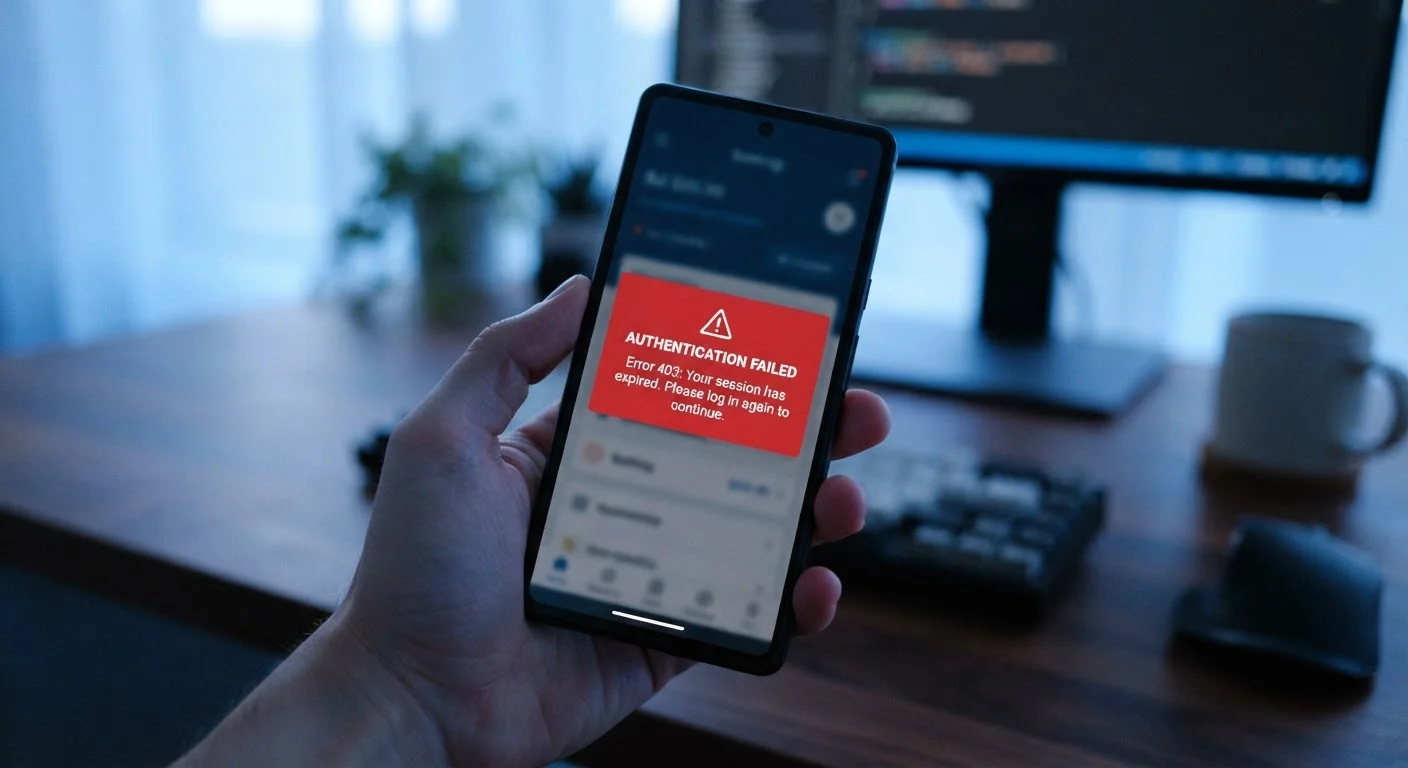
| HTTP 403 | Your account or session lacks permission for this resource | Log out and log back in; verify account permissions |
| Permission Denied | App needs a device permission (camera, mic, storage) you haven't granted | Go to device Settings → Apps → Permissions and enable the required access |
| No Internet / Network Error | Device can't reach the server - network issue, not usually the app | Toggle airplane mode off/on; switch between Wi-Fi and cellular |
| App Crash / Force Close | App terminated unexpectedly, often due to low memory or a code bug | Restart the app; restart the device; clear the app cache |
| Installation Failed | Download was incomplete or the app conflicts with a system requirement | Free up storage; check OS compatibility; re-download |
| Session Expired / Token Invalid | Your login session timed out for security reasons | Log out fully and sign in again |
| Most common trigger for app crashes | Insufficient device memory (RAM) |
| HTTP 404 meaning | Requested resource not found on the server |
| HTTP 500 meaning | Internal server error - the problem is on the server side |
| HTTP 403 meaning | Forbidden - you lack permission to access this resource |
| First recommended fix for most errors | Close and relaunch the app, then restart the device |
| When to clear app cache vs. app data | Cache first; data only if cache clearing fails (data wipes settings) |
| Error type: "No internet connection" | Network connectivity issue - check Wi-Fi or cellular, not the app itself |
| Where to report a persistent bug | App's official support page or in-app feedback tool |
A Repeatable Troubleshooting Process
Rather than guessing randomly, work through a consistent sequence when an error appears. This approach resolves the majority of common issues without requiring technical expertise.
- Read the full message. Note any code number and the exact wording before dismissing the dialog - you'll need this if the problem persists.
- Restart the app. Fully close it (don't just minimize) and reopen. A surprising share of errors are temporary states that clear on relaunch.
- Check your network. If the error suggests connectivity, verify your Wi-Fi or cellular signal and confirm other apps can reach the internet.
- Restart the device. This clears RAM, refreshes OS processes, and resolves many permission and memory conflicts automatically.
- Clear the app cache. On Android: Settings → Apps → → Storage → Clear Cache. On iOS, you typically need to offload and reinstall the app to achieve the same effect. Note: clearing data (not just cache) will erase saved settings.
- Update the app. Developers frequently release patches for known crash bugs. Check your app store for pending updates.
- Reinstall the app. If nothing else works, a clean install rules out a corrupted local installation.
Error Messages Aren't Always the App's Fault
Many error messages that appear inside an app are actually triggered by something external - an unstable network, an expired session token, a server outage at a third-party service, or an operating system update that changed how permissions work. Before assuming the app itself is broken, rule out these environmental factors first. Checking a service's public status page (many companies maintain one) can save significant troubleshooting time.
For errors that survive all of these steps, the issue likely lies with the app itself rather than your device. At that point, consult the developer's official support channel and include the exact error code in your report. Our guide to keeping apps running smoothly covers preventive habits that reduce how often you'll need this process at all.
1 in 4
App sessions end in a crash or error
Industry estimates suggest roughly one-quarter of mobile app sessions encounter some form of error or unexpected termination, underscoring how routine troubleshooting knowledge is.
~80%
Of app errors resolved by restart or update
The majority of common app errors are resolved through basic first-response steps such as restarting the app, restarting the device, or installing a pending update.
When to Stop Troubleshooting and Escalate
Some errors signal problems that no amount of user-side troubleshooting will fix. Recognize these situations early to avoid wasted effort.
- Server-side outages: HTTP 500 errors, or messages like "Service Unavailable," usually mean the developer's infrastructure is down. The only action available to you is waiting. Most major apps maintain a public status page (search " status") where ongoing incidents are posted.
- Account-level issues: Errors tied to account suspension, payment failures, or access restrictions require direct contact with the service's support team - no device fix applies.
- OS incompatibility: If an app stops working after a major operating system update, the developer may need time to release a compatible version. Check the app store listing for version compatibility notes.
- Hardware failures: Persistent crashes across multiple apps - especially paired with overheating or battery drain - may indicate a hardware problem with your device rather than a software issue.
Understanding where errors come from also depends on which type of software you're using. Desktop software and mobile apps handle errors differently, and the appropriate escalation path varies accordingly. For download and installation errors specifically, how app stores work can clarify whether the issue sits with the store, the developer, or your account.
App Store Support Pages
Both major mobile platforms (iOS App Store and Google Play) maintain official support documentation for download errors, installation failures, and billing issues. Searching the app name plus the exact error message on these pages often surfaces known fixes quickly.
HTTP Status Codes Reference
The Internet Assigned Numbers Authority (IANA) maintains the official registry of HTTP status codes. Bookmarking it lets you look up any three-digit code you encounter in a browser or web-based app in seconds.
Device Manufacturer Support Portals
Hardware-level errors - including app crashes tied to low memory or OS conflicts - are often documented on the support sites of device manufacturers. These portals also host firmware and driver updates that can resolve persistent issues.